
OneAttest User Guide
Help with OneAttest purchasing process: A Step by step guide
Overview Video: Using the CSV upload function
OneAttest Base
Base Single Provider Option
Step 1: Select "Subscribe Now" on the OneAttest Base subscription options page.
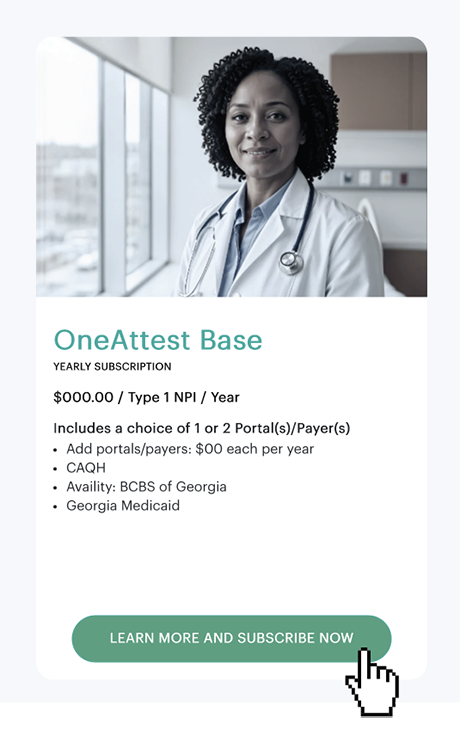
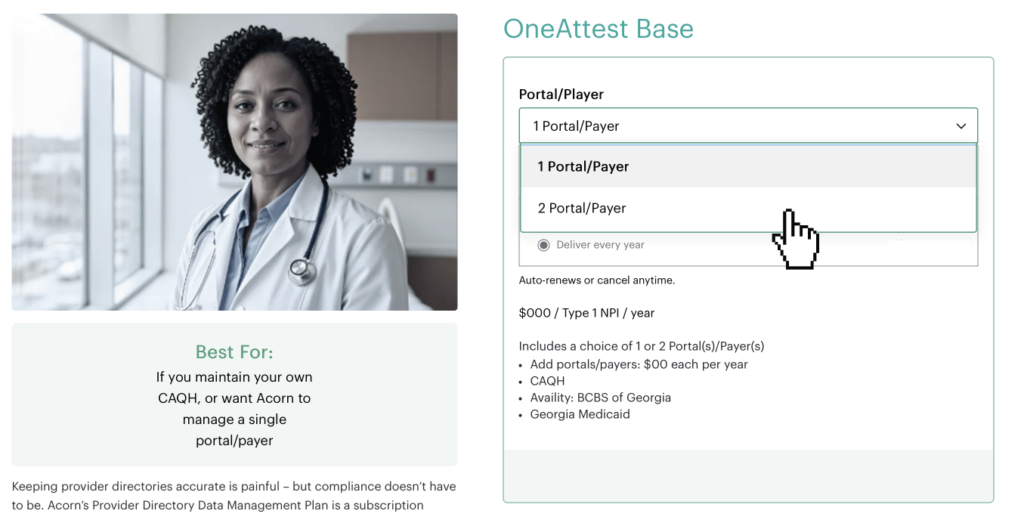
Step 2: Choose 1 or 2 – Portal/Payer options.
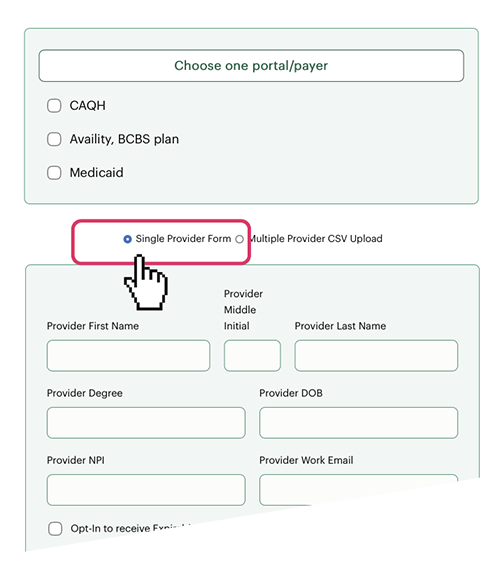
Step 3: Choose desired Portal/Payer options – check box fill out web form as required.
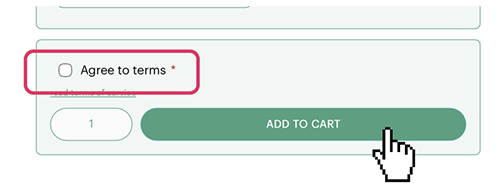
Step 4: Select "Agree to terms" and add to cart, proceed to check out/payment.
Base Subscription – Provider CSV Upload Option
Step 1: Choose "Multiple Provider CSV Upload" button and choose the “Download Template” link to the right.
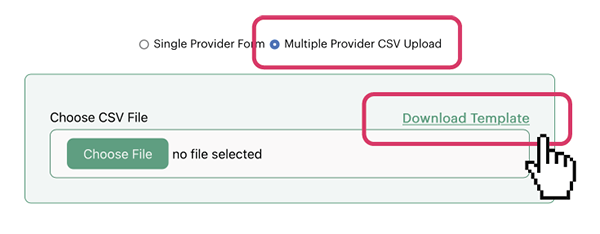
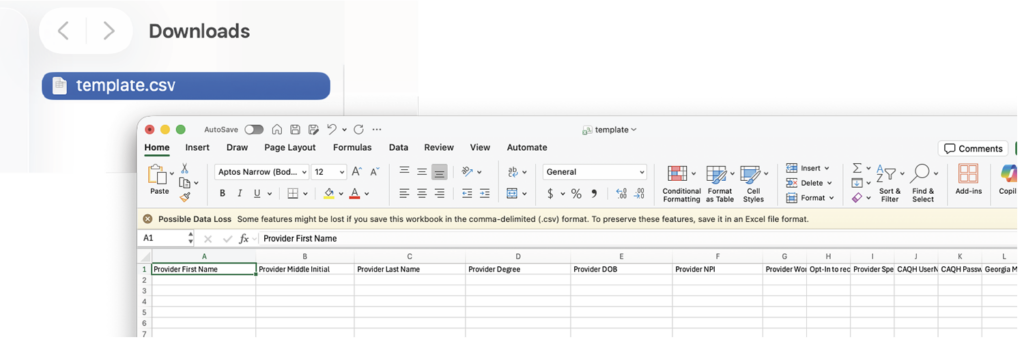
Step 2: A CSV file will appear in your browser downloads folder. Fill out desired information be sure to follow the preset columns in the CSV template.
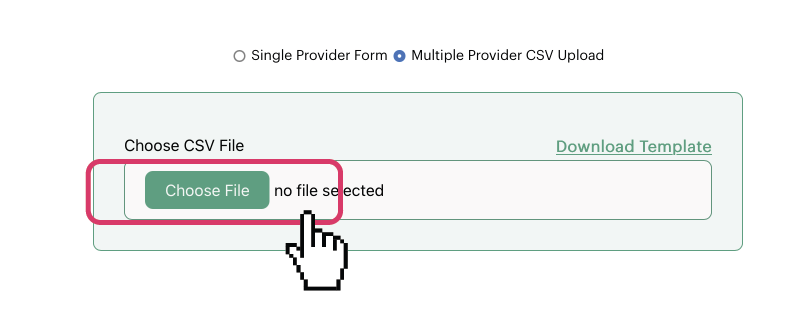
Step 3: Once your CSV is filled out be sure to check the information carefully and ensure it is correct, select the green “Choose File” button an upload window will appear.
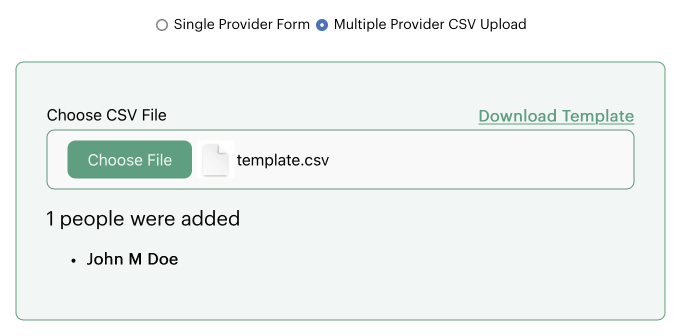
Step 4: When the upload window appears select "Upload", your CSV file will apear.
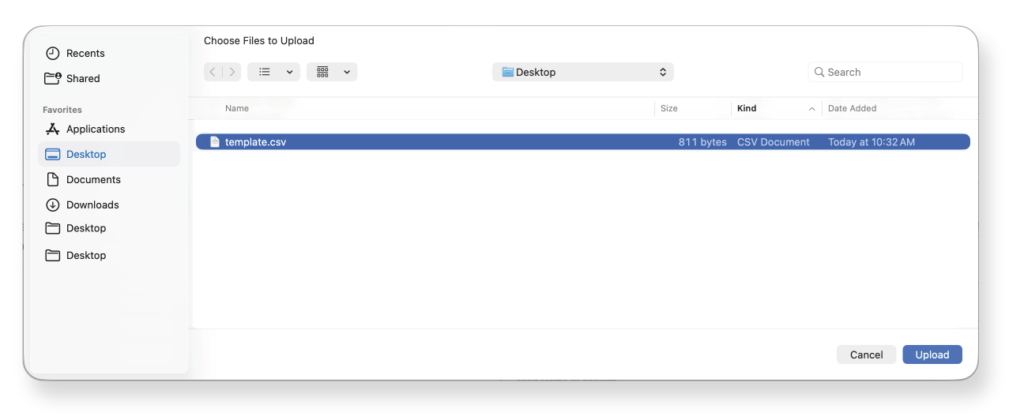
Step 5: Select "Upload" your CSV file the provider name will appear.
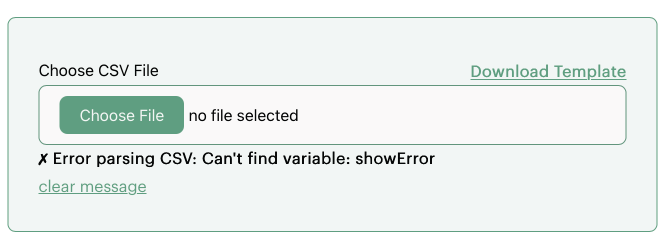
Note: if you encounter an error message when uploading, check your CSV file and ensure the information follows the template. Clear the message and re-upload.
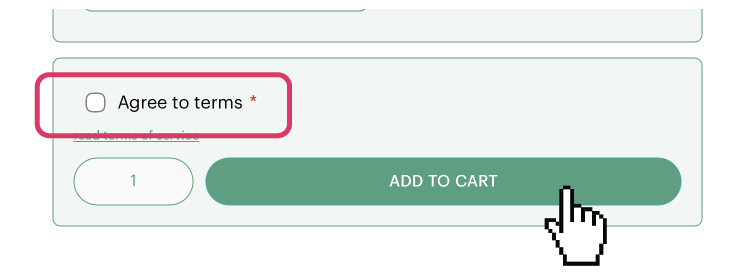
Step 6: Agree to terms and add to cart, proceed to check out/payment.
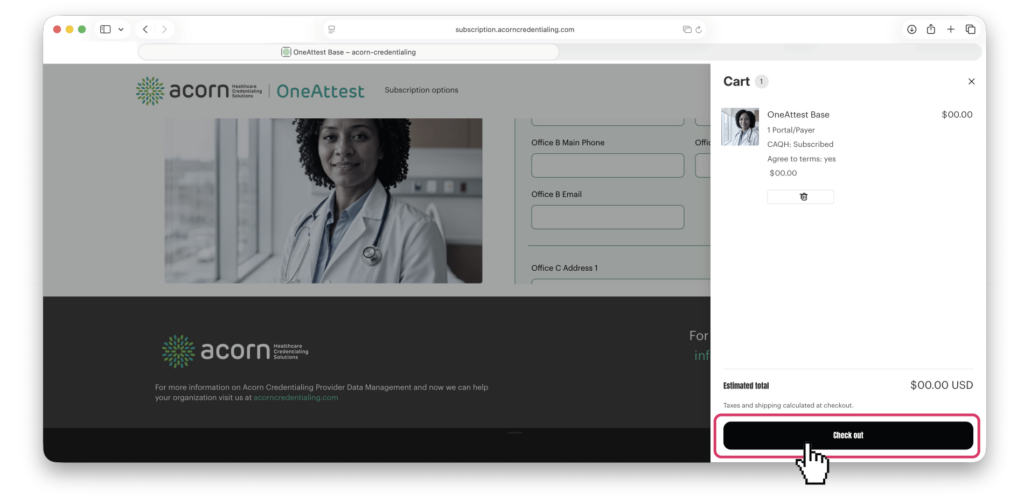
Step 7: A slide-out will appear with a summary order choose “Check out” and proceed to payment.
OneAttest Standard
Single Provider Subscription Option
Step 1: Select the "Learn More and Subscribe Now" button.
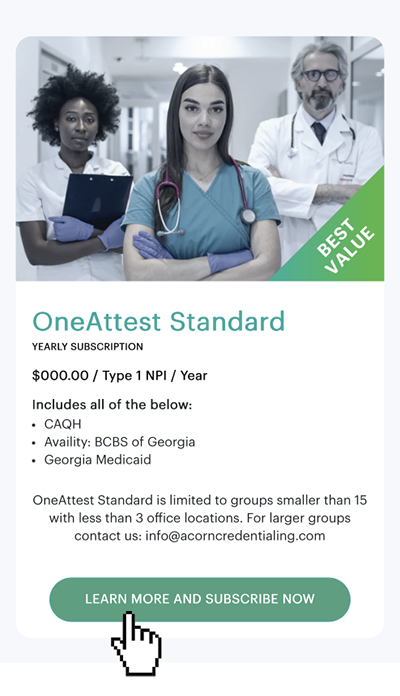
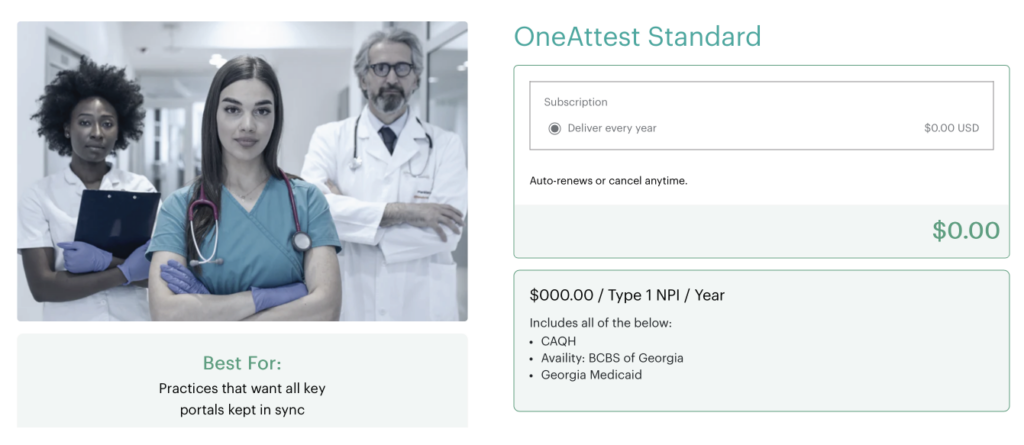
Step 2: Standard subscription will be auto selected.
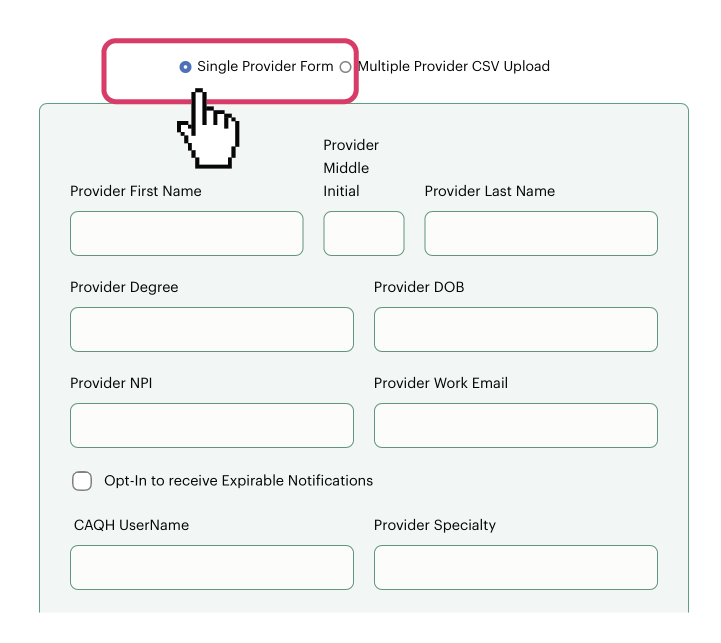
Step 3: To purchase a single provider, choose the "Single Provider Form" button and fill out the web form, ensure all information is complete, correct and all required fields are filled out.
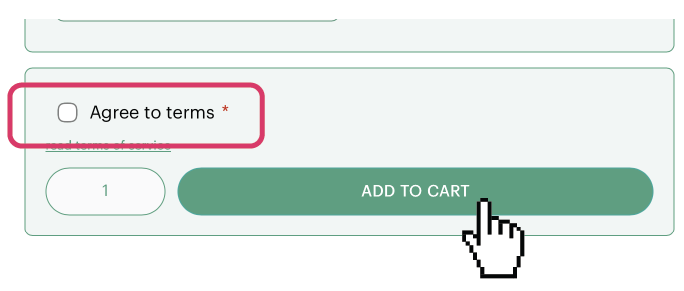
Step 4: Select "Agree to terms" and select "Add to cart", proceed to check out/payment screens.
Multiple Provider CSV Upload Option
Step 1: Choose "Multiple Provider CSV Upload" choose “Download Template” link to the right hand side.
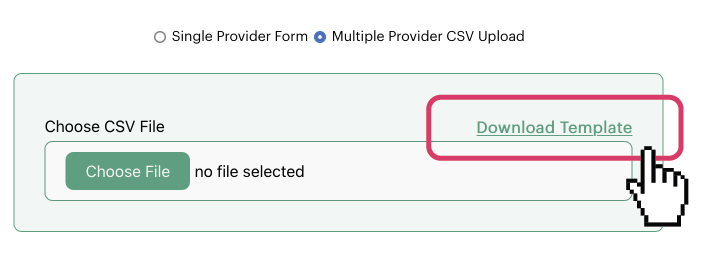
Step 2: A CSV file will appear in your browser downloads folder. Fill out desired information be sure to follow the preset columns in the CSV template. A maximum of 15 providers are allowed. To inquire about adding more than 15 providers please contact info@acorncredentialing.com
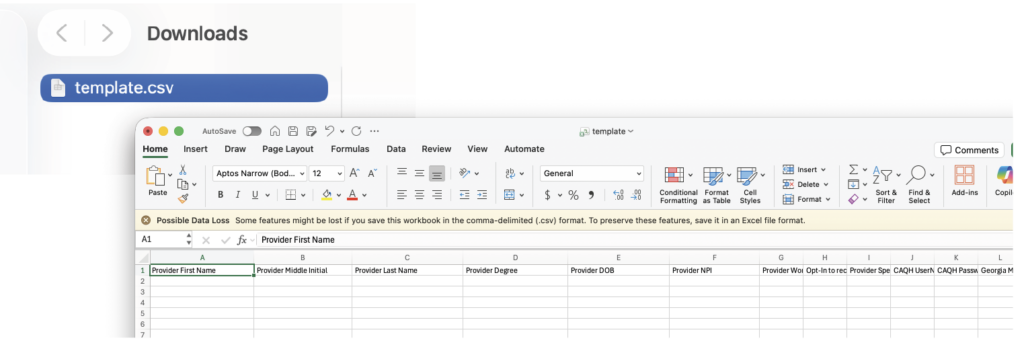
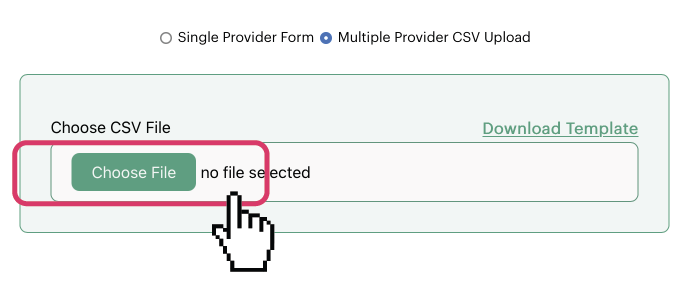
Step 3: Once your CSV is filled out be sure to check the information carefully and ensure it is correct, select the green “Choose File” button an upload window will appear.
Step 4: Select your CSV file and choose "Upload".
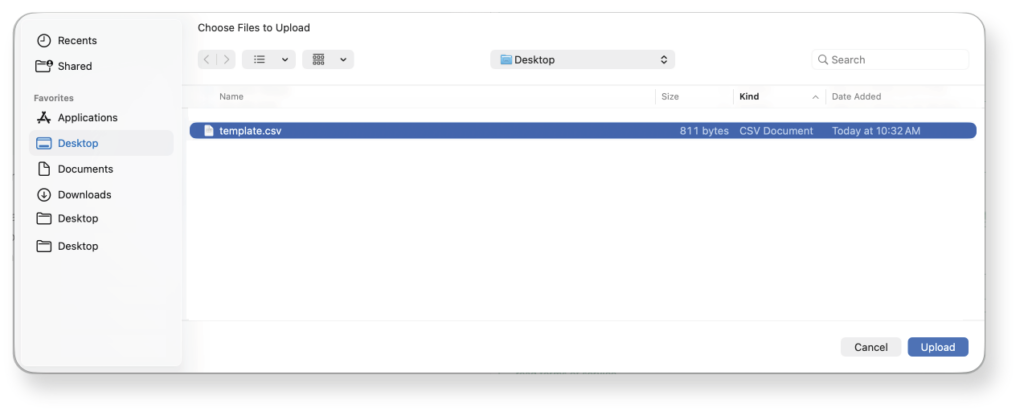
Step 5: After selecting your CSV file the provider names will appear automatically.
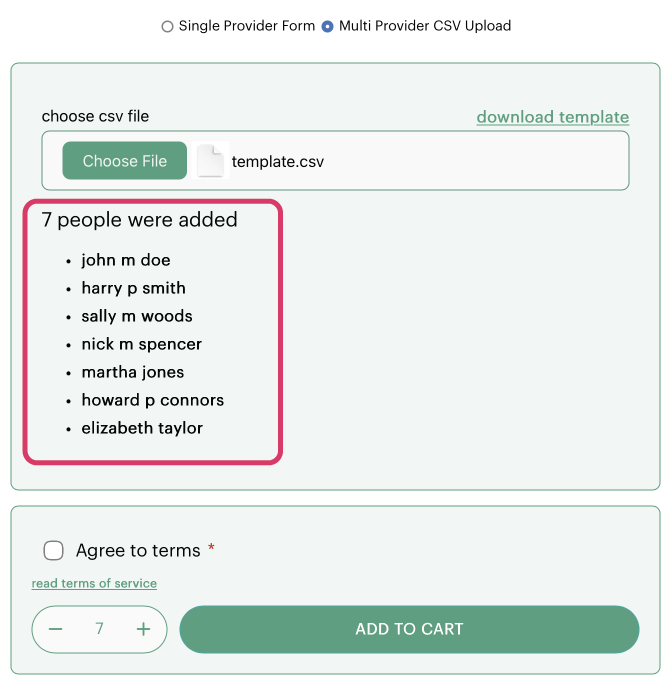
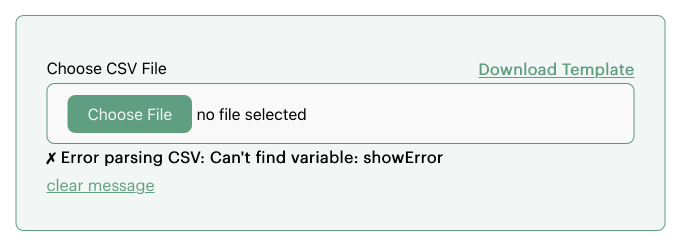
Note: If an error appears, ensure your CSV file information follows the template. Select "Clear message" and re-upload your corrected CSV file.
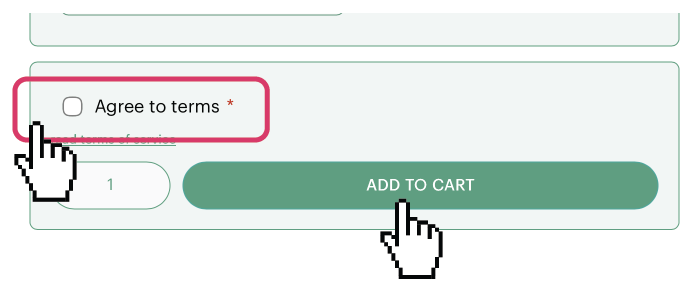
Step 6: Select "Agree to terms" and select "Add to cart", to proceed to check out/payment screen.
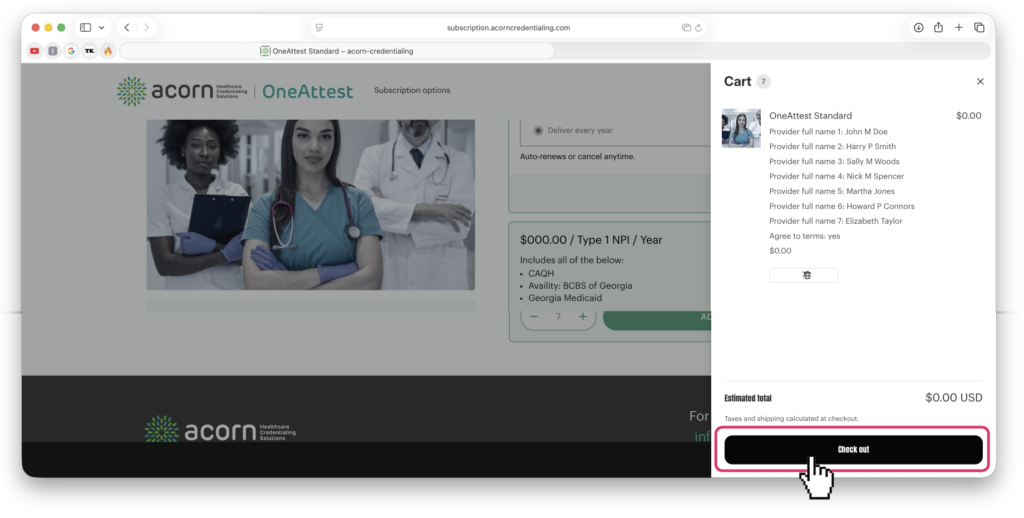
Step 7: A slide-out will appear with a summary order choose “Check out” and proceed to payment screen.
Headquarters
4731 W. Atlantic Ave, Suite B10
Delray Beach FL 33445.
Tel: 561-332-3838